|
It's a Setup
Follow these simple steps to set up your working environment for
computer use...
|
 Click
here if you are using a laptop/notebook Click
here if you are using a laptop/notebook
|
 |
1 Start
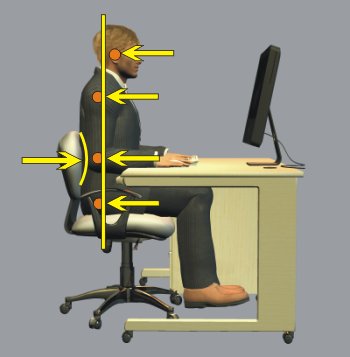
off by getting into a good sitting posture that will keep your static muscle effort as low as possible:
- Sit upright, fully back in the seat with your back straight and head up.
If you can't get fully back in the seat because the cushion is too long, you need to adjust the seat-back
forward, if you can, or change the chair.
- As far as possible, try to get your ears, shoulder, elbows and hip bone all in a vertical line.
|
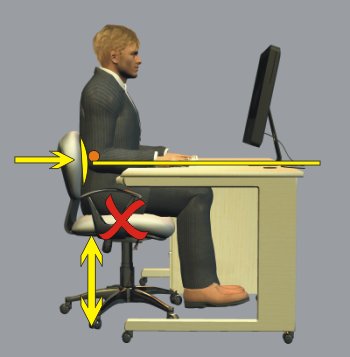 |
2 Set your seat to support you in that posture at your desk:
- Adjust your chair height so that the underside of your elbow is at desk height, when it is vertically under your shoulder.
- Adjust the seat-back forwards or backwards, and perhaps up or down, to support the small of your back in the upright position.
If your chair back will not fit you like this, you need a separate
back support, or a different chair.
- If your chair has fixed armrests, they may well be too low, when you sit correctly. If so, pad them to make
them higher, or remove them. Don't leave them as they are or they will
tempt you to slump down to them.
Note that if you are doing a spell of paperwork, you
should lower
your chair for that period, to restore the
intended work height for paperwork as opposed to
computing.
|
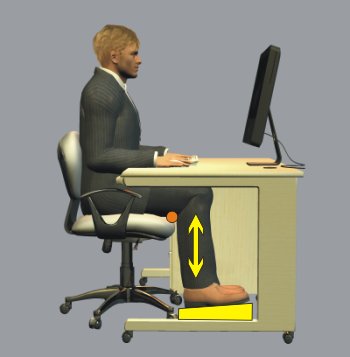 |
3 Roughly half of all people will need
a footrest, to support the lower leg at the right height.
This is because standard desk height was originally set for
paperwork.
You should have light pressure under the front of the thighs.
This is because
heavy pressure will tempt you to slide along the cushion to
relieve it, while on the other hand too little support will transfer pressure
uncomfortably to
the upper thigh/pelvis area and the feet.
You should choose a footrest of a suitable height to achieve
this. You can experiment with books or anything similar
to find the ideal height of a footrest for you, to achieve
that light pressure under the front of the thigh.
Then find or make a permanent footrest of that height. Make sure
it is wide and long enough for you to change the position of
your feet from time to time.
|
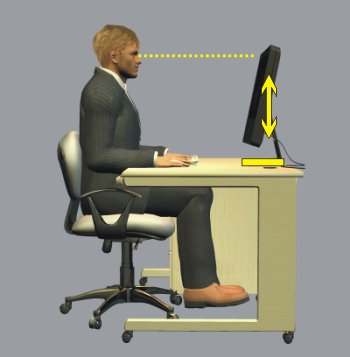 |
4 Adjust your
monitor height to suit
your position, so that your head
is facing straight ahead not up or down. Otherwise your
neck muscles will work too hard supporting your head.
Generally this
means having the top of the visible area at eye height; then
your head is nearly in balance, while your eyes naturally look
slightly downwards at the screen.
If your monitor is too low, you can stand it on something - an
old phone book, perhaps or whatever you have to hand according
to the rise you need. |
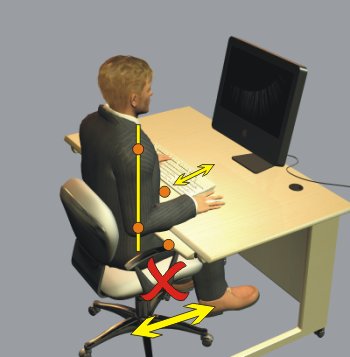 |
5 Roll your chair towards your desk, so
that when typing and using the mouse, your elbows are
vertically under your shoulders not pulled forwards.
You may need to remove any fixed armrests from your chair, if
they collide with the desk. Better chairs have short
armrests to prevent this problem.
If you are working at a curved corner of a desking unit you
may find it impossible to sit close enough to your mouse and
keyboard. If so, move the monitor out of the corner so
you can work at a straight section. In general, modern
monitors have made corner placement unnecessary, and in fact
they are often too far away then.
There should be enough space under your desk to place your
legs and feet comfortably, and to change their position.
It is not a good idea to store things there.
You should not work with things between you and the
keyboard - use a document holder if you're
copy typing, either
next to the screen or in front of it. |
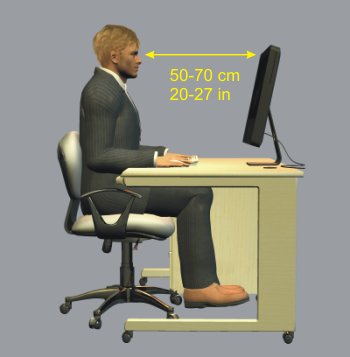 |
6 Next, adjust the distance from your
eyes to the monitor. You should be able to find a distance
where you can read your screen easily and without peering
forwards at it, but at the same time have your eyes relaxed -
not working to focus on the screen.
On a big desk, make sure your monitor is not too far away.
You may benefit from computer-users'single-vision
glasses that
adjust your eyesight to a suitable distance. They
are lighter than varifiocals.
If you use
reading glasses, you may find that the computer distance is in
between your natural focus with and without them. If so,
special varifocal glasses are available with an enlarged zone
around screen distance.
If reading the screen is not effortless, you may need a better
monitor. Also it may need cleaning.
Your operating system and software will allow you to alter
the size of screen elements and text, to make reading easier. |
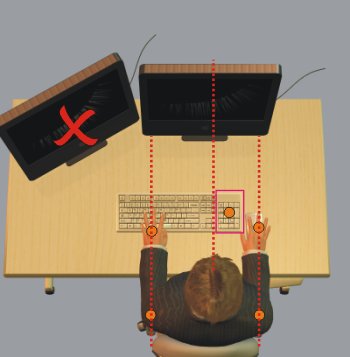 |
7 Now check that you are sitting squarely facing your
monitor, not twisted. Make sure you can roll your chair
along your desk to sit squarely, if need be. Drawer
units under the desk can normally be removed to make space for
this, if necessary.
When your hands are in their usual position they should not
pull your elbows away from being vertically under your
shoulders, either sideways or forwards, otherwise your
shoulder muscles will be working all the time.
If you are touch-typing the keyboard must be directly in
front of you. You can try using the mouse with your Left hand
- even if you are
right-handed you may find you can learn to be skilled enough.
Or you can move the mouse and keyboard over if you are using
the mouse
intensively.
Unless you make regular use of the numeric keypad, a narrower
keyboard without that extension will make it easier, if you
are fixedly right-handed. Or alternatively, a left-handed
keyboard will achieve the same effect.
|
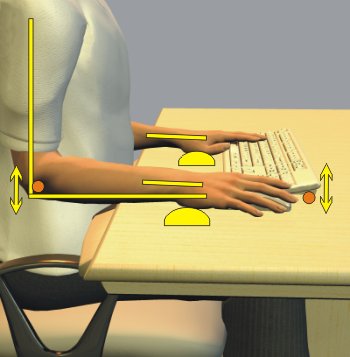 |
8 Now fine-tune your setup so that your wrists are not
working at an angle. Your hands should be in line
with your forearms, both looking from the side and looking
from above. You should also be able to rest your
palms on something whenever you are not actively typing.
-
Don't deploy the feet at the back of your keyboard unless
you really need to.
-
Use a gel "wrist rest", or a palm rest with your
keyboard, or a mouse mat, for the heels of
your hands to rest on (not your wrist which has
tendons moving in it).
-
Make small adjustments to your chair height, so
that your forearms line up with your hands.
-
If your mouse keeps 'escaping' across the desk
pulling your elbow away, try cutting down a
mouse mat or a piece of blotting paper and fixing it to the desk with
double-sided tape or blu-tak.
After this stage you should now be able to relax
the muscles in your back, neck, shoulders, arms
and hands, either all the time or at least
frequently.
|
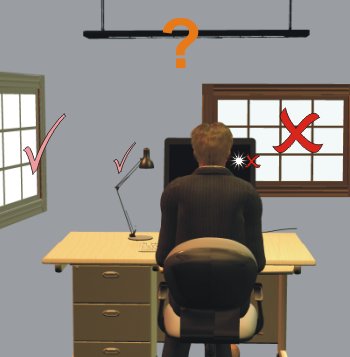 |
9 Set up your position in the room and the lighting to
make
things easy for your eyes. The background to your
monitor should be a similar brightness to the monitor, or just
slightly darker.
- Try not to face a window.
- Try not to have your desk against a wall. It helps your eyes if they can easily
relax by focusing on more distant things from time to time.
- Try not to have a window behind you that will cause
reflections on your screen.
- If this cannot be achieved, use blinds.
- Make sure the room lighting is not in your eyes or
causing reflections. Ask yourself if the overhead
lighting needs to be switched on at all.
- Consider using a desk lamp for reading paperwork.
A tall lamp with a full shade is best.
- Look at your monitor while it is switched off, to
check for reflections.
|
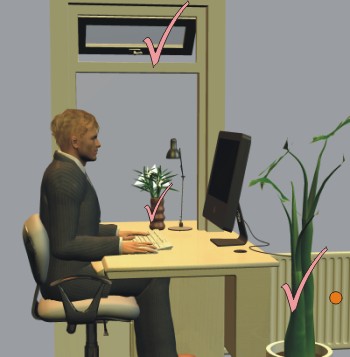 |
10 Maintain the air quality in your office:
-
Make sure you have fresh air, from a window or from the
heating/ventilation system. You don't need a window
open all the time, just some air changes periodically.
-
Monitor the humidity, it can drop to uncomfortable levels
with warming from the computer, leading to eye and throat
discomfort. 40-49% is generally comfortable, to
monitor humidity simple
gauges called hygrometers are
widely available and are very cheap.
-
Plants are a good way of maintaining humidity and air
quality.
-
If possible, direct control of temperature can be a
positive thing, otherwise make sure you have effective
communication with whoever controls it.
|
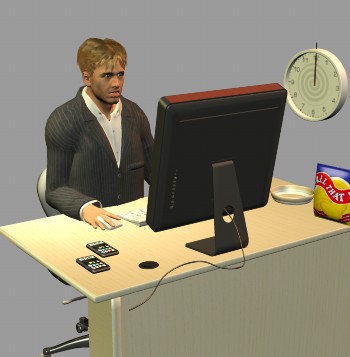 |
11 Manage stress and how you work:
-
Take regular breaks, at least 5 minutes away from your
screen every hour, ideally with
exercise or movement. Try not to
have lunch at your desk.
-
Do some different types of work during the day.
-
Take control of the order in which you do tasks.
-
Limit pressure to meet deadlines to what is
realistic.
-
Try to limit sudden changes in workload.
-
Communicate effectively with people who affect
your work.
-
If stress becomes a problem, consult your
managers and health and safety representative.
-
If there is distracting noise, get it seen to.
-
Make sure there is enough space on your desk.
Use proper storage and filing, and try to avoid
storing things on your desk. Consider
moving e.g. a printer onto an adjacent surface
like a filing cabinet.
DSE Home>>
|
|
|